

Xtreme HD IPTV can deliver superb picture and sound — but buffering, muddy video, and device hiccups still frustrate many viewers. This guide collects 25 practical, expert-backed tips to tighten up your setup and keep playback smooth. From smarter network tweaks and device tuning to hands-on troubleshooting and the newest streaming tech, these steps will help you get the most from your IPTV service.
Key Takeaways
- Prioritizing IPTV traffic with QoS and choosing wired Ethernet over Wi‑Fi cuts down buffering and stutters.
- Lowering latency by moving devices closer to the router and reducing active connections improves playback stability.
- Keep firmware up to date and tune video/audio settings to ensure devices stay compatible and run smoothly.
- Clear device caches regularly and use HDMI cables rated for the bandwidth you need for crisp HD or 4K output.
- Pinpoint buffering causes — like limited bandwidth or peak-time congestion — to apply the right fix faster.
- Run speed tests and use basic network monitoring to catch issues before they affect your stream.
- Fine-tuning resolution, bitrate, and color boosts perceived picture quality without overtaxing your connection.
- Adaptive bitrate streaming helps reduce interruptions by lowering or raising quality to match real-time bandwidth.
- Adopting low-latency protocols and QoS rules makes streams load faster and stay reliable, especially for live content.
How Can You Optimize Network Settings to Reduce IPTV Buffering?
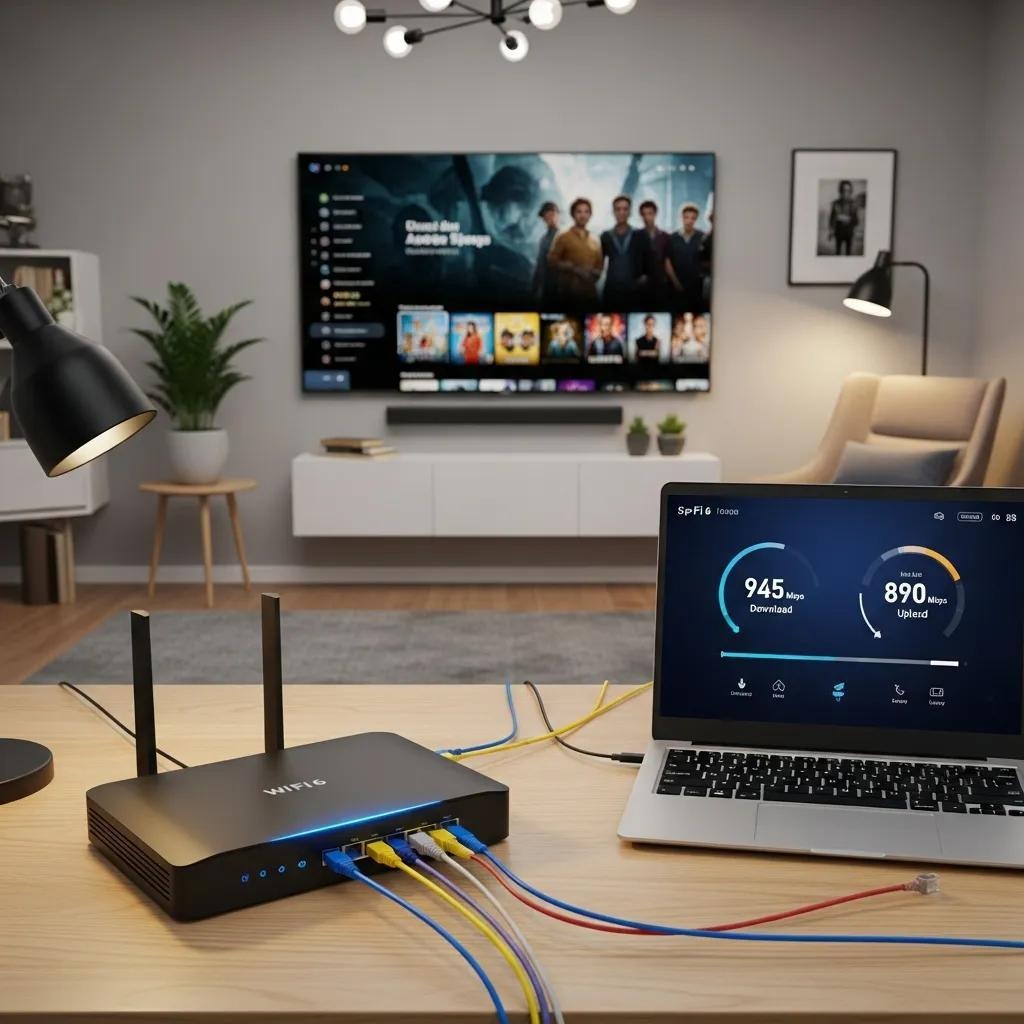
Network tuning is often the fastest way to eliminate buffering. A few targeted changes — from router QoS to picking the right connection type — stabilize throughput and reduce interruptions. Focus on bandwidth allocation, router placement, and managing congestion for the biggest gains.
What Are the Best Network Configurations for Xtreme HD IPTV?
For reliable Xtreme HD IPTV playback, try these network settings:
- Quality of Service (QoS): Turn on QoS in your router to give IPTV traffic priority so video packets get sent first when the network is busy.
- Wired Connections: Use Ethernet wherever possible; a direct cable to your box or TV delivers lower latency and fewer dropouts than Wi‑Fi.
- Router Placement: Put the router centrally and away from interference (microwaves, thick walls) to maximize signal reach and reduce packet loss.
These straightforward configurations usually make the single biggest difference in playback stability.
How Does Network Latency Affect IPTV Streaming Quality?
Latency is the delay between a data request and its response. High latency shows up as pauses, lag, or stutter during streaming. Reducing round‑trip time and congestion keeps video flowing smoothly.
- Reduce Distance: Shorten the path between device and router to cut latency — wired is best, but even moving a TV box closer helps.
- Limit Connected Devices: Disconnect phones, tablets, or smart gadgets not in use to free bandwidth for streaming.
- Use a VPN: Occasionally a VPN can improve routing and reduce hops, but test it first — results vary by provider and region.
Addressing latency directly will often resolve intermittent buffering and improve stream responsiveness.
Which Device Setup Tips Enhance Xtreme HD IPTV Compatibility and Performance?
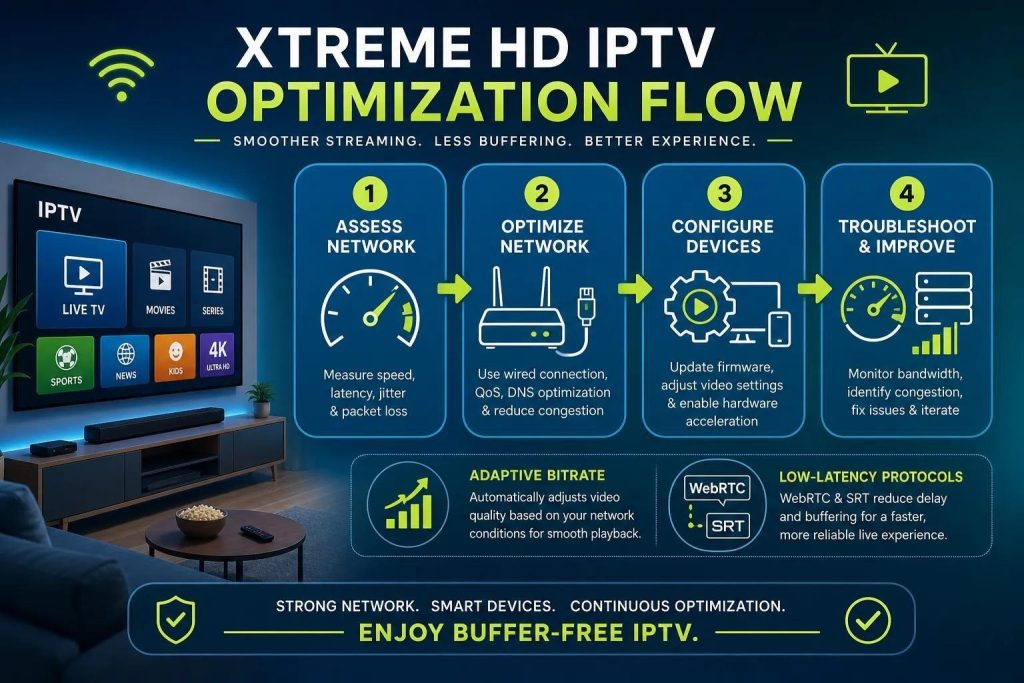
Devices with the right settings and maintenance run smoother and avoid common playback issues. Small, regular upkeep plus a few configuration checks will keep your setup compatible and responsive.
How to Configure Devices for Optimal Xtreme HD IPTV Streaming?
Follow these steps to tune your devices for the best IPTV performance:
- Update Firmware: Check for system and app updates regularly — vendors fix streaming bugs and add compatibility in updates.
- Adjust Video Settings: Match your device’s output to the service’s supported resolution (1080p or 4K) to prevent unnecessary scaling or frame drops.
- Clear Cache: Periodically clear app or device cache to remove corrupted files and free memory that can cause lag.
These routine actions keep playback reliable and reduce glitches.
What Are the Recommended Device Compatibility Settings?
Settings to verify for consistent Xtreme HD IPTV playback:
- HDMI Settings: Use HDMI cables rated for the resolution and refresh rate you intend to use (HDMI 2.0+ for reliable 4K at 60Hz).
- Audio Settings: Set audio output to match your sound system (bitstream, PCM, or Dolby formats) to avoid sync or decoding errors.
- Network Settings: Ensure the device points to the right network and uses static IP or DHCP reservations if you want consistent local routing.
Verifying these settings reduces compatibility hiccups and improves the viewing experience.
What Are Effective Troubleshooting Methods to Fix IPTV Buffering Issues?

When buffering appears, a quick, methodical approach gets you back to smooth playback. Start with simple checks, then dig deeper with tools and tests to isolate the root cause.
How to Identify and Resolve Common Buffering Causes on Xtreme HD IPTV?
Typical buffering culprits and fixes:
- Insufficient Bandwidth: Run a speed test and compare results to the required bitrate for your stream; upgrade or reduce concurrent usage if needed.
- Network Congestion: Limit heavy downloads or uploads while streaming; schedule large transfers outside viewing times.
- Server Issues: If your provider’s servers are unstable, check their status page or contact support — sometimes the problem is on their side.
Working through these checks will quickly identify whether the issue is local, network‑level, or provider related.
Which Tools Help Monitor and Improve IPTV Streaming Stability?
Use these tools to diagnose and monitor streaming health:
- Speed Test Applications: Tools like Speedtest.net show download/upload speeds and latency so you can confirm baseline performance.
- Network Monitoring Tools: Utilities such as PingPlotter help visualize packet loss and latency trends to pinpoint trouble along the route.
- Buffering Test Tools: Specialized apps and player logs can reveal how often and why a stream buffers, giving actionable data for fixes.
Regular monitoring helps you spot patterns and prevent future disruptions.
How Can You Enhance Video Quality on Xtreme HD IPTV?
Better picture quality comes from matching device settings to content and letting the stream use available bandwidth efficiently. Small adjustments to resolution, bitrate, and color can noticeably sharpen the image.
What Settings Improve Picture Quality for IPTV Streaming?
Tune these options for clearer, more detailed video:
- Resolution Settings: Pick the highest resolution your service and screen support, but drop to a lower preset if your connection struggles.
- Bitrate Settings: Increase bitrate when your connection allows to improve detail; lower it during congestion to avoid buffering.
- Color Settings: Calibrate color, contrast, and HDR options on your TV or device to get accurate, vibrant images.
Balancing resolution and bitrate based on real-world speeds gives the best consistent quality.
How Does Adaptive Bitrate Streaming Benefit Xtreme HD IPTV Users?
Adaptive bitrate streaming automatically adjusts video quality to fit your current bandwidth. That means fewer freezes and a smoother viewing experience as network conditions change.
- Reduced Buffering: The stream drops to a lower quality when bandwidth dips, preventing pauses.
- Improved Viewing Experience: You keep watching without long interruptions, even when speeds fluctuate.
- Optimized Resource Usage: Bandwidth is used efficiently so other devices can also stay online without breaking the stream.
Adaptive streaming is ideal for households with mixed or variable internet use.
What Are the Latest IPTV Streaming Technologies to Boost Xtreme HD IPTV Performance?
Keeping up with newer streaming protocols and network strategies helps you get the best possible performance — especially for live and high‑resolution content.
How Do Low-Latency Protocols Improve IPTV Experience?
Low-latency protocols like WebRTC and SRT reduce transmission delay, which benefits live streams and interactive content.
- Faster Streaming: Lower delay means quicker start times and snappier playback.
- Enhanced Interactivity: Real‑time features and live chats work better with minimal delay.
- Improved Quality: These protocols maintain higher quality under challenging network conditions by prioritizing timely delivery.
Adopting low-latency protocols is especially useful for broadcasters and viewers of live events.
What Network Quality of Service Enhancements Support IPTV Streaming?
Key QoS and network strategies that support steady IPTV delivery:
- Traffic Prioritization: Mark IPTV packets or create rules so video traffic moves ahead of background downloads and updates.
- Bandwidth Management: Reserve enough bandwidth for streaming — allocate fixed throughput if your router supports it.
- Monitoring Tools: Use QoS dashboards to spot and correct flows that threaten stream quality before viewers notice.
These measures make streams more predictable and resilient under load.
For a deeper dive into how cutting-edge infrastructure can further refine IPTV delivery, consider this research on optimizing IPTV within 5G networks.
Edge Computing for IPTV Optimization in 5G Networks
ABSTRACT: This paper examines how integrating edge computing into 5G infrastructures can improve the performance, scalability, and quality of Internet Protocol Television (IPTV) services. Using comparative analyses of architectures, streaming behaviors, and performance metrics as user counts rise, the study highlights advanced optimization techniques—local caching, adaptive transmission, load balancing, and smarter traffic routing. Combining edge computing with 5G creates a powerful foundation for modern IPTV platforms that need to deliver high-quality content even under heavy network load.
Leveraging Edge Computing for IPTV Optimisation in 5
G Networks: A Comprehensive Analysis of Performance and Scalability, F Prodani, 2026
Frequently Asked Questions
What internet speed is recommended for optimal Xtreme HD IPTV streaming?
Aim for at least 25 Mbps for reliable HD streaming. If you want to stream 4K, target 50 Mbps or more. Remember, those figures assume the connection is reasonably clean — many devices on the same network will require a higher total bandwidth.
Can I use a Wi-Fi connection for Xtreme HD IPTV, or is a wired connection better?
Wi‑Fi works for many setups, but wired Ethernet is the more dependable choice — it reduces latency and interference. If you must use Wi‑Fi, place the router centrally, minimize obstacles, and use the 5 GHz band for higher throughput and lower congestion.
How can I troubleshoot audio issues while streaming Xtreme HD IPTV?
Check your device’s audio output format and ensure it matches your receiver or TV. Inspect HDMI or audio cables for damage, verify in-app audio settings, and restart your device and router. If problems persist, test another app or source to rule out hardware faults.
What should I do if my IPTV service is frequently buffering?
Start with a speed test to confirm bandwidth. Reduce simultaneous network use, enable QoS to prioritize streaming, and switch to a wired connection if possible. If buffering remains, contact your IPTV provider to check for server-side issues or regional outages.
Are there specific devices recommended for the best Xtreme HD IPTV experience?
Popular, dependable devices include Amazon Fire TV Stick, Roku, and modern Android TV boxes. Choose hardware that supports the desired resolution (1080p or 4K), has regular firmware updates, and runs the IPTV app smoothly.
How can I enhance the security of my IPTV streaming?
Use a reputable VPN to encrypt traffic and protect your privacy, keep devices updated with the latest security patches, use strong unique passwords, and periodically scan your network for unknown devices to prevent unauthorized access.
Conclusion
Improving Xtreme HD IPTV performance is a mix of smart network choices, simple device care, and using the right tools. Apply the tips above — prioritize traffic with QoS, favor wired connections, keep firmware current, and use monitoring tools — and you’ll notice fewer interruptions and better picture quality. Start with the quickest wins for your setup, then layer in the advanced changes as needed for the best viewing experience.


